Light Weight List - Hide Columns
Description
You can designate specific columns in a Light Weight List to be hidden. Hidden columns remain part of the underlying SQL data model but are not shown in the rendered list.
Overview
Columns in a Light Weight List can be configured so that some fields are visible and others are hidden. A hidden column remains available for SQL CRUD operations, sorting, filtering, and expressions, but is not displayed to the end user.
How to hide a column
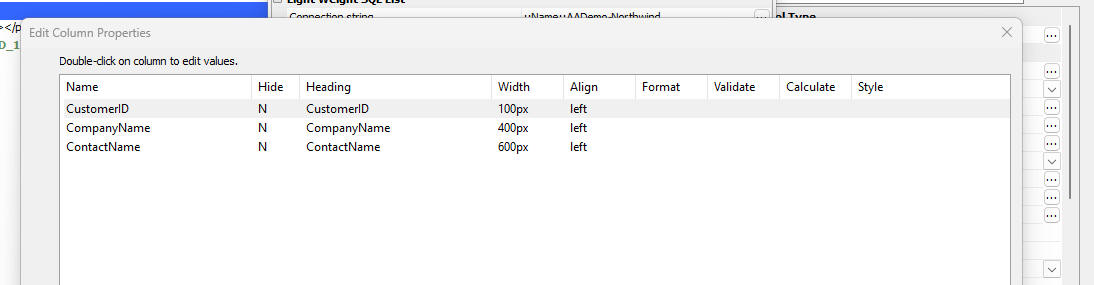
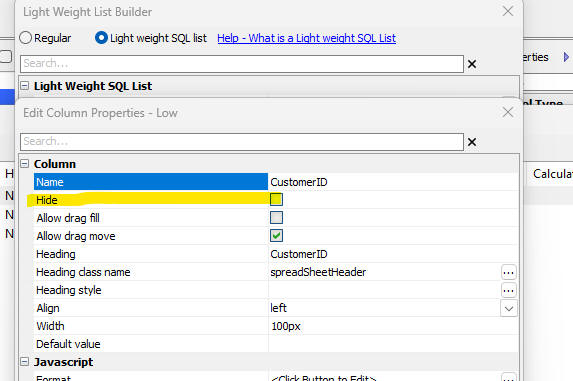
To hide a column in a Light Weight List, open the Edit Column Properties dialog for the column and check the Hide property. When the component is rendered, the column’s data will no longer be displayed in the list.
Hiding and showing columns programmatically
You can also hide or show columns at runtime using Javascript. This can be useful if visibility depends on user permissions or other dynamic logic.
var obj = {dialog.object}.getControl('name_of_light_weight_list');
obj.data.columns[0].hide = true;    // hide the first column (index 0)
obj.refresh();                      // refresh the control to apply changes
Interaction with Drag Fill and Drag Move
The video for this topic also demonstrates the Drag Fill and Drag Move features. Even if a column is hidden, the Light Weight List continues to operate normally, and the visible columns retain their drag-fill and drag-move behavior.
Hide Columns
This video shows how to hide columns in a Light Weight List and how fill and move behaviors interact with hidden and visible columns.
Note: This is the same video as at Fill Drag and Fill Move.
See Also